
Live data and controls
After the Mini connects, the Home card displays current, temperature, PD optical power, and voltage. Controls are on the left; live charts are on the right.
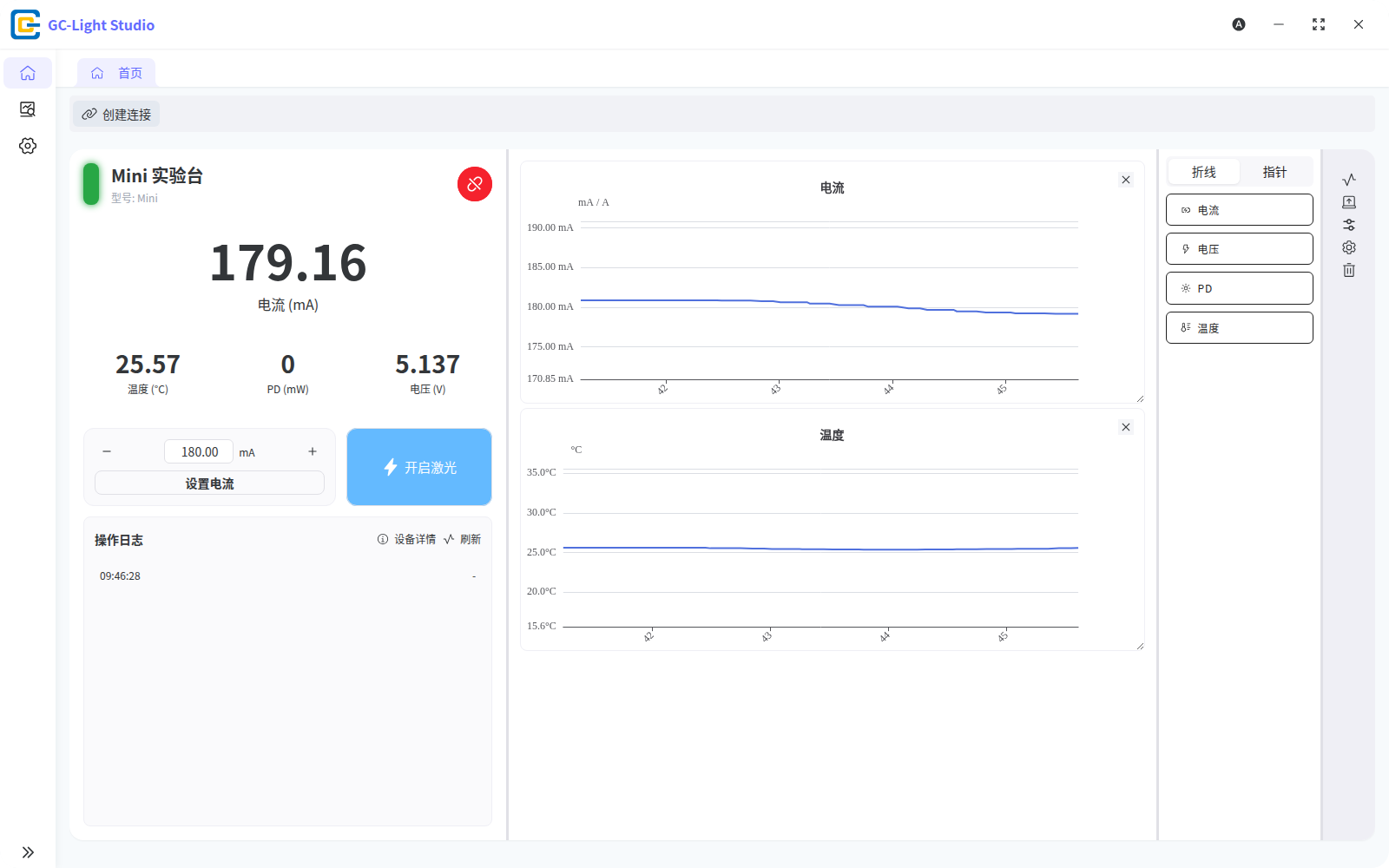
Set current
- Enter a target in the current field or use the decrement and increment controls.
- Select Set current.
- Confirm that the live current settles near the target and continue to watch temperature.
The interface accepts only values supported by the device. If the action is unavailable, check the connection state and input format instead of repeatedly submitting the same value.
Enable and disable laser output
After confirming the target current and optical-path safety, select Enable laser. The action changes to the corresponding disable control while output is active. At the end of a run, disable output before disconnecting the Mini.
Recommended sequence: connect → set current → enable laser → observe data → disable laser → disconnect.
Log, details, refresh, and disconnect
- Operation log shows control results and errors for the current connection.
- Device details shows the currently available model, port, SN, firmware information, and related fields.
- Refresh reads the device state again; it does not replace reconnecting after a disconnection.
- Disconnect releases the serial port. The app prevents an unsafe disconnect or exit while laser output is still active.
Bluetooth controls
With a Mini connected, open Additional features on the card and select Bluetooth. The dialog reads the current state before allowing a change.
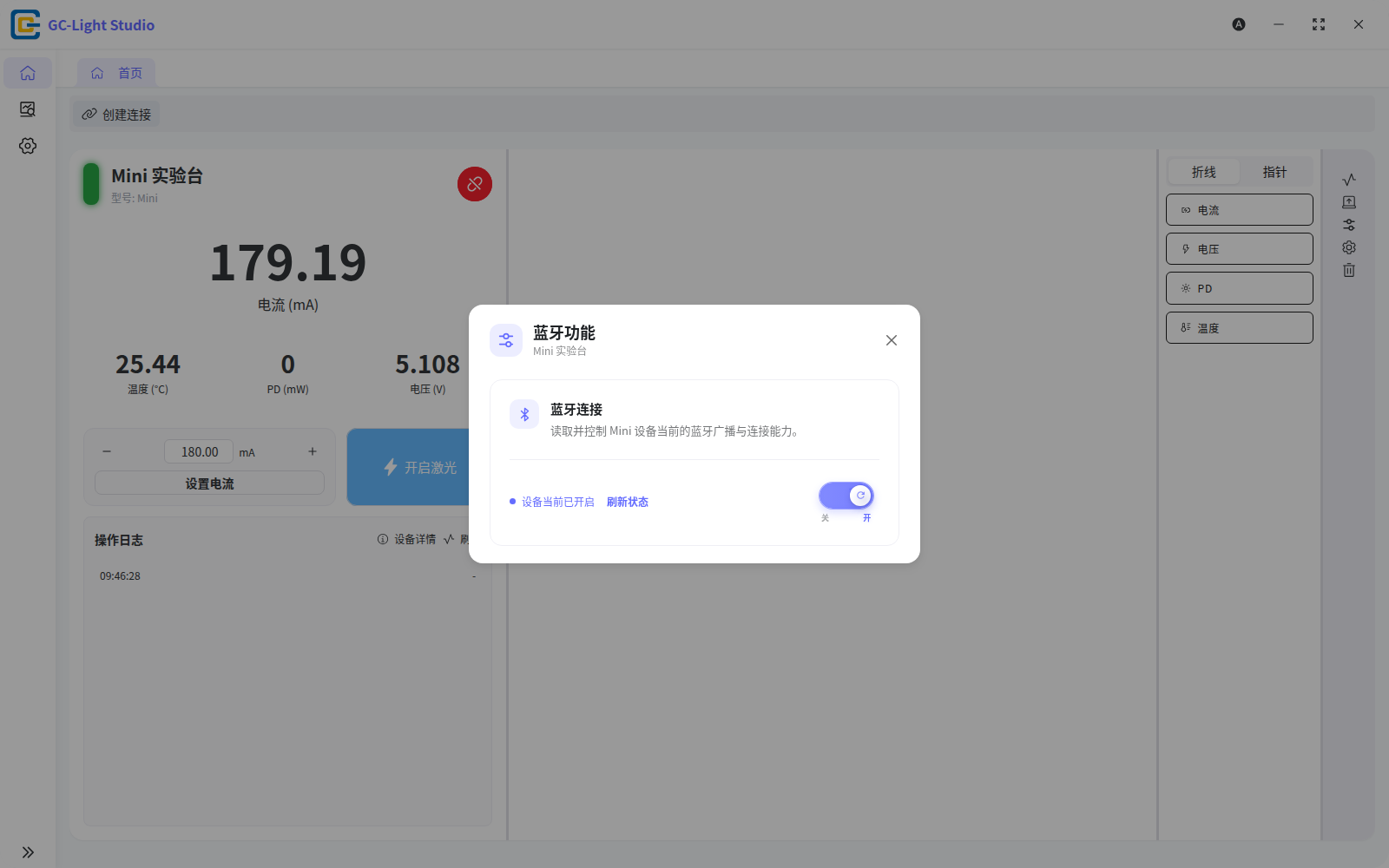
- Refresh status reads the current Bluetooth state from the Mini.
- Off / On submits the requested state; wait for a success response before closing the dialog.
- If reading or changing the state fails, keep USB connected, confirm that the Mini is still connected in the app, and retry.
Live charts and the data window
The right side of the card supports line and gauge displays. Select or drag current, voltage, PD, and temperature charts into the workspace; remove or rearrange them as needed.
- Choose an item under the Line or Gauge tab.
- Wait for samples to reach the chart.
- Use the right-side tools to configure automatic range, display offset, and other visible chart options.
- Select the data-window action when you need a separate live view.
The live data window is available only while a device is connected. It reads the same connection as the main card. Closing the data window neither disconnects the Mini nor disables laser output.